This guide explains how to connect Microsoft Dynamics 365 Finance & Operations (F&O) with Morescope in order to synchronise transactional accounting data for spend analysis and emissions modelling. Dynamics 365 Finance is legal-entity (company) driven. Correct setup of users, roles, and legal entities is required to ensure all relevant companies are shared with Morescope.
Overview
Morescope integrates with Dynamics 365 Finance & Operations using:
Microsoft Entra ID (Azure AD) App Registration
OAuth 2.0 client credentials flow
Dynamics 365 Finance OData APIs
Posted accounting data via BI entities (recommended by Microsoft)
The integration is read-only and does not modify data in your Finance environment.
Prerequisites
Before starting, ensure you have:
A running Dynamics 365 Finance & Operations environment
Access to Microsoft Entra ID
A user with:
Azure tenant admin permissions (for consent)
Finance system administrator permissions (for user & role setup)
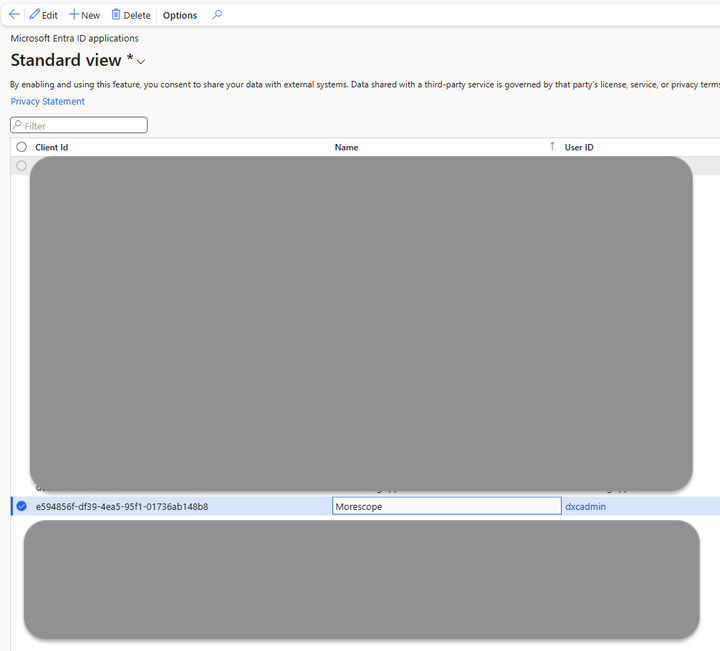
Application Details (Provided by Morescope)
Morescope has already created the Azure App Registration used for the integration.
Application name: Morescope AS Dynamics 365 FO Integration
Select Grant access to specific organizations individually
Choose All legal entities (recommended), or
Explicitly select the companies that should be shared (e.g. 200, 201, 208)
Important
Azure App Registration does not control company access
Legal entity access is defined only here
If a company is not assigned, its data will never be returned via the API
Step 5: Default Company (Company Field)
On the user form you will see a Company dropdown.
What this field does
Sets the default legal entity context
Does not grant or restrict access to other companies
Best practice
Leave it empty, or
Set it to a main / technical company
Changing this value only affects which company is used by default if no company context is specified in API calls.
Default company menu
Data entities availability
Morescope uses standard Microsoft-provided BI entities (e.g. VendTransBiEntities) which are available by default in Dynamics 365 Finance & Operations environments. These entities do not require manual publishing.
Summary
That should be it! Once completed, please confirm back with us to proceed with the testing and activation phase. Should you have any questions or require further assistance, don't hesitate to reach out.
Thank you very much for your cooperation!
Setup Connection inside Morescope Application
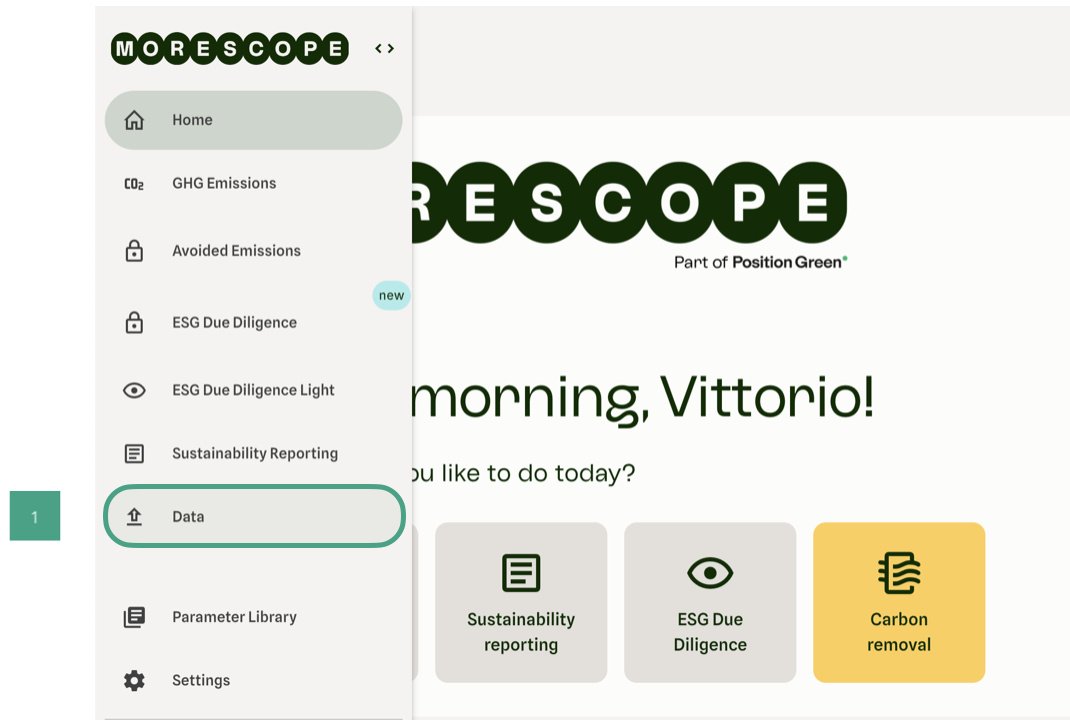
Navigate to “Data” in the left side menu
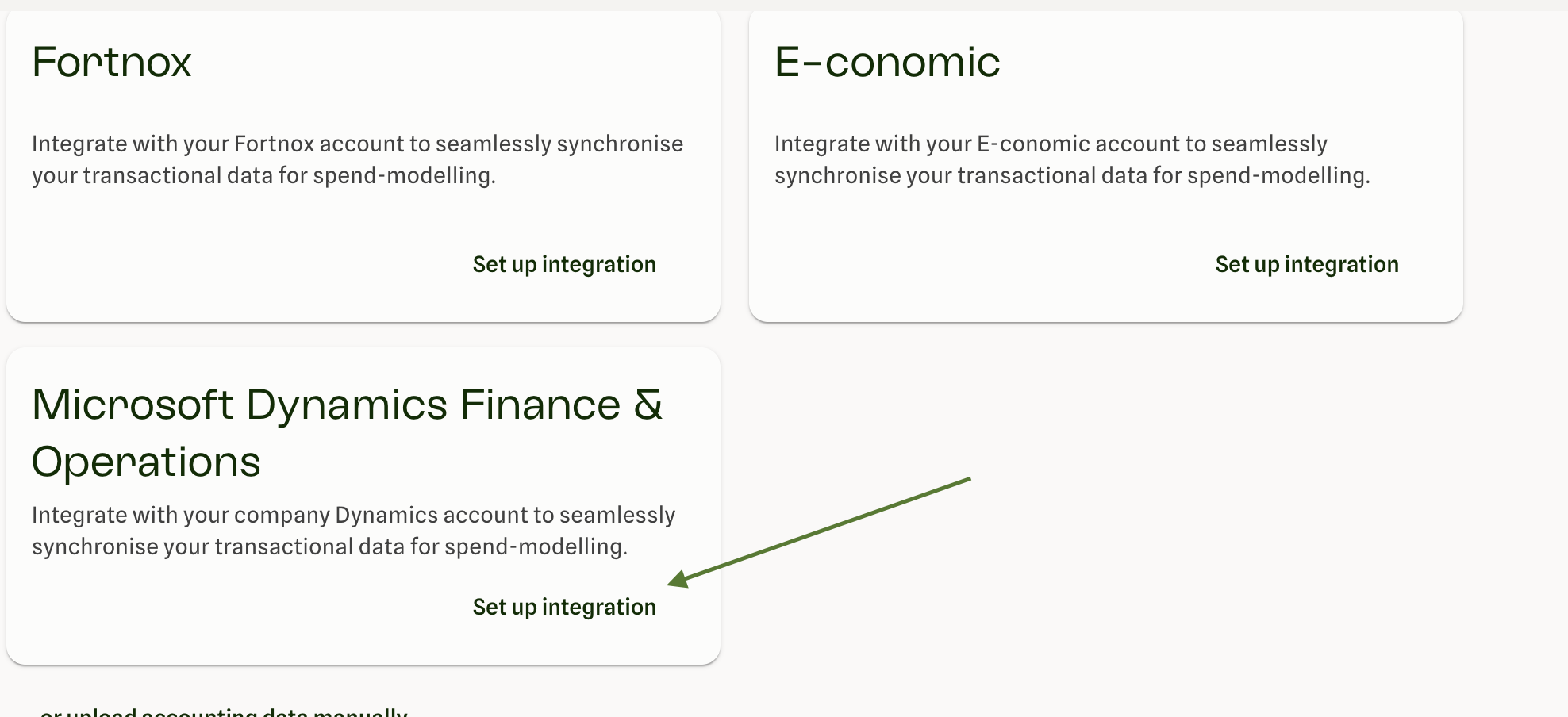
Click "Set up integration" under Microsoft Dynamics Finance & Operations
Insert your Dynamics Finance & Operations Host name (ie. https://{name}.myenv.operations.dynamics.com), company IDs you want to integrate and “Azure Tenant ID” (you can insert one or many separated by a comma)
Click “Authenticate and activate integration”
After clicking the button a check is made to see that the credentials given are correct. You should see a popup and the card saying “Authenticating credentials"
After the authentication is finished (usually takes about 30 seconds) you will see the card change to "Verified Credentials". You will also get a popup in the top right saying that the authentication was completed.
Congratulations. You are integrated!
If you do not see or do not know your Azure Tenant ID please ask your cloud administrator.
Contact Morescope Support
If you run into any issues, contact your Morescope onboarding representative for guidance or troubleshooting support.
By clicking “Accept All Cookies”, you agree to the storing of cookies on your device to enhance site navigation, analyze site usage, and assist in our marketing efforts. View our Privacy Policy for more information.








%20(1).JPG)



%201.JPEG)


.png)


.png)


